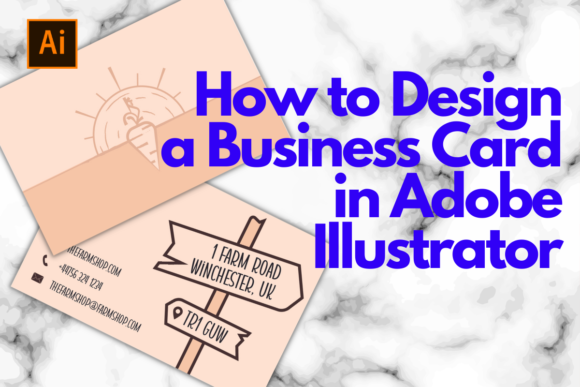
How to Design a Business Card in Adobe Illustrator
Designing a business card in Adobe Illustrator is a powerful way to create a professional and visually appealing representation of your brand. Whether you're an entrepreneur, freelancer, or part of a growing company, having a well-designed business card can make a lasting impression. This guide will walk you through the essential steps of creating a business card using Adobe Illustrator, while also exploring how this approach compares to other design methods.
Understanding the Basics of Business Card Design
A business card is more than just a piece of paper with contact information. It's a small but impactful tool that represents your brand identity. Effective business cards are clean, readable, and consistent with your overall branding. When designing one in Adobe Illustrator, you have full control over typography, color schemes, and layout.
Adobe Illustrator is a vector-based graphic design software that allows for high-quality, scalable graphics. This makes it ideal for creating business cards that look sharp on both digital and printed formats. Unlike raster-based programs, Illustrator ensures that your design remains crisp at any size.
Key Features of Adobe Illustrator for Business Card Design
Adobe Illustrator offers several features that make it stand out when designing business cards:
- Vector Graphics: Designs remain sharp and scalable, making them perfect for printing.
- Typography Tools: A wide range of fonts and text formatting options allow for customization.
- Color Management: Precise control over colors ensures consistency across all print materials.
- Layer Management: Easily organize elements like text, logos, and background designs.
- Export Options: Save your design in various formats suitable for both digital sharing and printing.
These features make Illustrator a preferred choice for professionals who want to maintain a high level of quality and flexibility in their design work.
Steps to Design a Business Card in Adobe Illustrator
Creating a business card in Adobe Illustrator involves several key steps:
- Set Up Your Document: Open Adobe Illustrator and create a new document with the dimensions of a standard business card (typically 3.5 inches by 2 inches).
- Add Background: Use the rectangle tool to create a background. You can add gradients, patterns, or solid colors based on your brand’s visual identity.
- Incorporate Your Logo: Import your company logo or create a new one using Illustrator’s shape tools. Position it in a prominent location, usually at the top or center.
- Include Text Elements: Add your name, title, company name, phone number, email address, and website. Choose fonts that reflect your brand personality—modern, traditional, minimalist, etc.
- Design Layout: Ensure there is enough white space between elements so that the card doesn’t appear cluttered. Align text and graphics using the alignment tools.
- Preview and Export: Preview your design on screen and then export it as a PDF or PNG file for printing or sharing digitally.
Each step provides an opportunity to refine your design and ensure it meets both functional and aesthetic goals.
Comparing Adobe Illustrator with Other Design Tools
While Adobe Illustrator is a top choice for many designers, it's important to consider alternatives when deciding which tool to use for your business card design. Here are some common comparisons:
- Canva: Canva is a user-friendly online platform that offers pre-made templates and drag-and-drop functionality. It’s great for beginners but lacks the advanced features found in Illustrator.
- Photoshop: Photoshop is primarily a raster-based image editor. While it can be used for basic design tasks, it’s not as effective for creating scalable vector graphics.
- Inkscape: Inkscape is a free, open-source alternative to Illustrator. It offers similar vector-based design capabilities but has a steeper learning curve.
- Microsoft Word: Word is often used for simple text-based designs, but it doesn't provide the same level of design flexibility or control over visuals.
Each of these tools has its own strengths and limitations. Adobe Illustrator is particularly well-suited for those who need precise control over their design and plan to print the business cards professionally.
When to Choose Adobe Illustrator Over Other Options
Adobe Illustrator may be the best option if:
- You require high-quality, scalable vector graphics for printing.
- You want full control over typography, color schemes, and layout.
- You’re working on a project that requires complex illustrations or custom shapes.
- You prefer a professional-grade design tool with extensive features and resources.
On the other hand, if you're looking for something simpler or more affordable, tools like Canva or Inkscape might be more appropriate. These alternatives can be sufficient for basic needs but may not offer the same level of detail or customization.
Real-World Examples and Practical Applications
Consider a scenario where a small business owner wants to create a business card that reflects their brand identity. Using Adobe Illustrator, they can design a card with a unique color scheme, custom illustrations, and a clean layout that aligns with their brand guidelines. This level of personalization is difficult to achieve with simpler tools.
Another example is a freelance graphic designer who needs to produce multiple versions of their business card for different clients. Illustrator’s layer management and export options make it easy to adjust and reuse elements across various designs efficiently.
Limitations and Considerations
Despite its many advantages, Adobe Illustrator does have some limitations that users should be aware of:
- Learning Curve: The software can be complex for beginners, requiring time to learn its features and tools.
- Cost: Adobe Illustrator is part of the Adobe Creative Cloud suite, which requires a subscription. This may be a barrier for those on a tight budget.
- Resource Intensive: The software can be resource-heavy, requiring a powerful computer to run smoothly.
If these factors are significant concerns, it may be worth exploring free or more affordable alternatives before committing to Adobe Illustrator.
Conclusion
Designing a business card in Adobe Illustrator offers a robust solution for creating professional and visually appealing designs. Its vector-based approach ensures scalability and quality, making it ideal for both digital and print formats. While there are other tools available, Illustrator stands out for its versatility and precision. By understanding the strengths and limitations of each option, you can choose the right tool that best fits your needs and budget.